There are many different ways for subcontractors to manage daily reporting for construction projects. Each contractor follows their own standard operating procedures, ranging from simple notes or document files, to spreadsheets, to Google Forms, to texts with photos and brief updates.
At a certain scale, these systems often break down from lack of consistency, organization, and accountability. Key job details go undocumented or get lost, and this can lead to real consequences.
For example:
Change order disputes you can’t document cost you the full value of the extra work.
GCs who ask for daily logs you can’t produce question your professionalism on the next bid.
Safety incidents without a timestamped record become liability exposure.
PMs spending hours chasing paperwork aren’t managing projects.
ServiceTitan’s daily log feature was built to solve these issues. Field crews fill out structured logs in the mobile app, documenting project health, work performed, materials, equipment, safety, weather, and photos, which are all tied to the right project and date. The office reviews and approves logs, creating a locked, auditable record. And the Daily Logs report lets you pull log data across every active project at once, filtered by date, PM, status, or health score, without opening a single spreadsheet.
Below we’ll walk through how it works and how it ties into the surrounding project management workflows in ServiceTitan.
Create Daily Logs in the Mobile App

Some construction daily report apps treat the daily log as a standalone form that a foreman fills out in isolation, disconnected from the project schedule, the job details, and the rest of the crew’s work.
In contrast, ServiceTitan’s Daily logs live inside the project management system, so the superintendent or lead opens the job they’re working on, taps into the project, and the daily log is right there in context, alongside documents, RFIs, media, and the rest of the project record.
From the daily log screen, the lead field tech fills out a structured report covering:
Project health — a simple On Track, At Risk, or Off Track assessment that gives the office an instant read on where things stand.
Notes — a free-text field for documenting work completed, daily construction activity, and anything the office needs to know.
Issues — a yes/no flag with space for detail. If something went wrong on site, it’s captured here, not buried in a text thread.
Materials — what was used or received on site that day, tied to the project rather than floating in a separate inventory system.
Equipment — assets and equipment used, documented against the job for cost tracking.
Safety — safety checks performed, toolbox talks conducted, and any incidents that occurred. This is the timestamped record that protects you during an OSHA inquiry or a GC audit.
Weather conditions — documented at the job site, not pulled from a weather app after the fact. When a rain delay pushes your schedule, you have the field notes to back up the claim.
Attachments — attach pictures, videos, or files directly to the log entry. Photos land on the right project, on the right date, in cloud storage that the office can access immediately. No more scrolling through camera rolls or group texts.
Signature — the lead signs the log, creating an accountable record of who documented the day’s work.
Field crews can save a draft and update it throughout the day in real time, which solves the recency bias problem that plagues end-of-day reporting. Superintendents can document the morning’s rough-in work at lunch, add the afternoon inspection results before leaving the site, and submit a complete log without trying to reconstruct eight hours from memory.
If the lead needs to go back and update a previous day’s log — maybe they forgot to note a material delivery from Tuesday — they can pull it up by date and make changes, as long as the office hasn’t approved it yet. Once approved, the log locks, creating an auditable project documentation trail that can’t be altered after the fact.
Review Daily Logs and Generate Reports

In ServiceTitan, daily logs submitted from the field sync to the project record automatically. The PM or project manager opens the project, navigates to the daily logs section, and reviews each entry. They can approve logs to lock them into the permanent record, or flag issues that need follow-up. The approval workflow creates accountability on both sides so the field knows their logs are being read, and the office has a clear trail of what was reviewed and when.
The Daily Logs report template lets you pull daily log data across your entire portfolio of active projects in a single view. Instead of opening each project individually, a construction executive or operations manager can run a report filtered by:
Date range — see all daily construction activity from the past week, month, or quarter.
Project manager — compare documentation consistency across PMs and identify who needs coaching.
Project status — focus on in-progress work and filter out completed or canceled projects.
Project health — surface every project flagged as At Risk or Off Track so you know where to focus.
Daily log status — find drafts that haven’t been submitted, logs that haven’t been signed, or entries still waiting for approval.
The report includes columns for field headcount, labor hours logged (and hours as a percentage of the total labor budget), whether issues were identified, safety incident notes, weather notes, and general field notes. You can track labor hours against budget at the project level without waiting for payroll to process time cards. You can spot a project where the crew has flagged issues three days in a row before it becomes a crisis. You can measure daily log compliance across business units and use it in PM one-on-ones to reinforce documentation discipline.
For specialty contractors running five, 10, or 20 concurrent projects, this is the difference between managing by gut feel and managing with actual data. The report can be scheduled to run automatically, so Monday morning starts with a clear picture of what happened across every active job site the previous week. No phone calls, no chasing, no spreadsheets.
Initiate RFIs and Change Order Requests From the Project Record

Here’s where the daily log ties into a workflow that directly protects your revenue.
When a foreman documents an issue in the daily log, such as unexpected site conditions, a design conflict, or work outside the original scope, it often needs to become a formal RFI or change order request. In most setups, that’s a manual handoff: the field lead calls the PM, the PM writes up the RFI in a separate system (or in an email), and the connection between the daily log entry and the formal request can easily get lost.
In ServiceTitan, RFIs and change order requests live on the project record alongside the daily logs. The PM reviews the daily log, sees the flagged issue, and creates an RFI directly from the project screen with a subject, due date, priority level, and fields for schedule and cost impact. They can upload supporting files, link the RFI to a specific project drawing annotation, and assign subtasks.
When the RFI response makes it clear the scope has expanded, the PM converts it to a change order request that carries context from the original RFI, creating a documented chain from the field note to the formal scope change to the budget adjustment. That chain is what wins disputes with general contractors. When the GC pushes back on a change order six weeks later, you can show the daily log entry documenting the issue, the RFI that was sent, the response that confirmed additional work was required, and the change order request that followed — all linked, all timestamped, all in one place.
RFIs and change order requests each move through a status workflow (Draft, Sent, Responded, and for change orders, Approved or Rejected) with a built-in chat and email function. The PM can message internal team members or email external contacts directly from the RFI, and the conversation stays threaded inside that specific request rather than scattered across inboxes. Responses from external parties appear in the RFI’s email tab automatically. When the RFI or change order needs to go into a formal submission package, it exports to PDF reports with a couple of clicks.
Other Project Management Features in the Field Mobile App

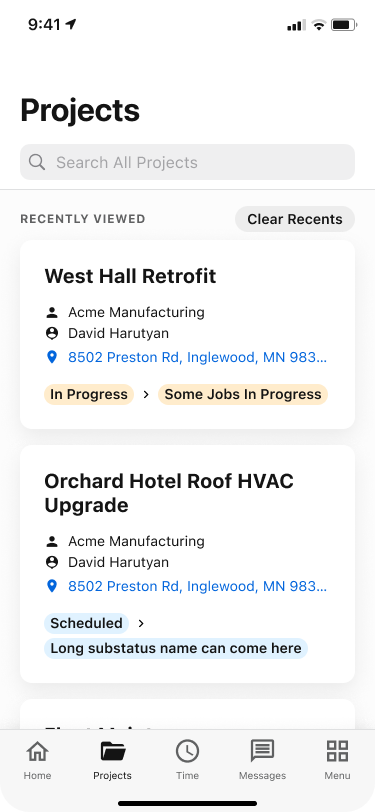
Daily logs and RFIs are part of a broader set of project management tools that field teams access directly from the mobile app, where technicians or superintendents see everything related to a project in one place:
Project details and status — view the project name, number, customer, location, PM, start and completion dates, and project totals. Field leads can update the project status directly from the app, so the office sees real-time progress without waiting for a phone call.
Jobs on the project — every job linked to the project is visible from the project screen. With the right permissions, crew members can open and take actions on any job within the project, such as adding materials to a job they’re helping on.
Book follow-on jobs — when a crew discovers additional work on site, such as a punch list item from a previous phase or new scope identified during an inspection, they can book a follow-on job directly from the project. The customer name and location are pre-filled, and the new job automatically links to the project.
Documents and media — project drawings, forms, and attachments are accessible from the field. The crew can reference specs, review forms, and access any media uploaded to the project without switching apps or digging through email.
Timesheets — field leads can add time cards for themselves and their crew directly from the project screen, keeping time tracking tied to the project record rather than handled in a separate system.
The workflows between field teams and office employees stay connected because everything lives on the same project record. When a superintendent updates project status, logs daily activity, submits an RFI, or books a follow-on job, the office sees it immediately. When the office approves a daily log, updates a change order, or adjusts the schedule, the field sees it on their next sync. There’s no export step, manual data transfer, or separate app for each function.
The Full Project Management Picture in ServiceTitan

The field mobile app covers the daily execution layer of what happens on the job site. Back in the office, ServiceTitan’s desktop project management tools handle the planning, financial, and oversight functions that keep projects on track and profitable:
Project budgeting and job costing tied to cost codes, so you can see how actual labor, materials, and equipment spending compares to the estimate at any point in the project.
Scheduling and dispatching that handles the complexity of multi-phase, multi-crew construction work alongside your residential service calls.
Progress billing and invoicing connected to the project record, so billing reflects actual work completed rather than a PM’s best guess.
Document management for drawings, contracts, permits, and specifications — with annotation tools that let you pin RFIs directly to a location on a drawing.
The key advantage is that daily logs don’t live in isolation. They feed into the project record that drives budgeting, billing, scheduling, and executive reporting.
The #1 newsletter for the trades.
Why Daily Logs Matter More When They’re Connected to Everything Else
Standalone construction daily report apps solve one piece of the problem. They give the field a cleaner way to fill out a daily log than paper or a Google Form. Some of them work offline, which matters on remote job sites. And they produce decent PDF reports for GC submissions.
However, daily reports are only as useful as the system they connect to. Because daily logs live inside ServiceTitan’s broader construction management software, the information flows in both directions.
The daily log captures labor hours that feed into job costing against cost codes. An issue flagged in the log becomes an RFI that becomes a change order that adjusts the project budget — all linked and traceable. Photos attached to the log land in the project’s document library, searchable and organized, not sitting in someone’s camera roll. The owner or construction executive pulls a cross-project report on Monday morning and sees project health, labor patterns, safety compliance, and open issues across the entire portfolio, because the daily log data is part of the same system that tracks scheduling, billing, inventory, and customer records.
That’s the difference between a daily report template and a construction daily log app that actually changes how you run projects. The report is the starting point for the decisions that protect your margins, keep your GC relationships intact, and give you visibility into what’s happening across every active job site without turning your PM into a full-time paper-chaser.
If you’re interested in learning more about how ServiceTitan’s cloud-based platform can help you streamline and grow profitability in your contracting business, schedule a free call with us to see a personalized demo of the features and functionality we’ve discussed throughout this post.